


Sercomm DM1000 Cable Modem Guide
Setup, Light Patterns, Multi-Gig Ethernet & Troubleshooting
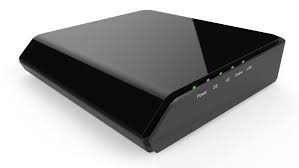
The Sercomm DM1000 is a DOCSIS 3.1 cable modem approved for use on the Wakey cable network. This guide covers physical setup, modem light patterns, reset instructions, multi-gig Ethernet and common troubleshooting.
Important — This Modem Does Not Provide Wi-Fi
The DM1000 is a standalone cable modem. It does not contain a Wi-Fi router.
To connect wireless devices, connect your Wakey-provided Wi-Fi router/mesh system or your own compatible router to the DM1000’s Ethernet port.
In This Guide
Quick Specs
Sercomm DM1000
- Type: Standalone DOCSIS 3.1 cable modem
- Operating Mode: Bridge-only modem
- Wi-Fi: None — a separate router or Wi-Fi system is required
- Ethernet: 1 × 2.5 Gigabit Ethernet (2.5GbE)
- DOCSIS: DOCSIS 3.1 with DOCSIS 3.0 fallback
Its 2.5GbE Ethernet interface makes the DM1000 suitable for Internet plans and home networks capable of exceeding standard Gigabit Ethernet speeds.
How to Connect Your DM1000
Setup is simple: coax in, Ethernet out.
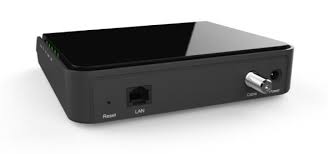
- Connect the coax cable from your wall outlet to the Cable/Coax connector on the DM1000.
- Connect the modem’s power adapter.
- Allow approximately 2–10 minutes for the modem to boot and establish its connection.
- Connect an Ethernet cable from the DM1000 Ethernet port to the WAN/Internet port on your router.
- Allow your router a few minutes to obtain an Internet connection.
Connection Map
Coax Outlet → DM1000 → Ethernet → Router WAN → Your Devices
Want Multi-Gig Performance?
A Cat5e or Cat6 Ethernet cable is recommended.
Your router must also have a compatible multi-gig WAN port if you want the Ethernet connection between your modem and router to operate above 1 Gbps.
DM1000 LED Light Patterns
Normal Operating State
Power Solid • DS Solid • US Solid • Link Solid
The LAN indicator may flash as data moves between your modem and router.
| Light | Colour | What It Means |
|---|---|---|
| POWER | Green | Flashing: Modem is powering up. Solid: Normal operation. |
| DS | Green | Flashing: Modem is acquiring its downstream connection. Solid: Downstream signal acquired. Off: May indicate standby/no downstream connection. |
| US | Green | Flashing: Modem is acquiring its upstream connection. Solid: Upstream signal acquired. Off: May indicate standby/no upstream connection. |
| LINK | Green | Flashing: Establishing IP connectivity. Solid: Normal operation / connectivity established. Off: Connectivity has not been established or modem is in standby. |
| LAN | Green / Orange | Orange: Ethernet device connected at 10/100/1000 Mbps. Green: Ethernet device connected at 2500 Mbps. Flashing Green/Orange: Ethernet traffic is passing. Off: No Ethernet device detected. |
LAN Light = A Handy Speed Clue
The LAN indicator can tell you what Ethernet link speed has been negotiated between your DM1000 and router.
- Orange: 10/100/1000 Mbps Ethernet connection
- Green: 2.5 Gbps Ethernet connection
A green LAN light does not mean your Internet is necessarily running at 2.5 Gbps — it means the Ethernet link between the modem and connected device has negotiated at 2.5 Gbps.
Understanding the DM1000’s 2.5GbE Port
One of the DM1000’s biggest advantages is its 2.5 Gigabit Ethernet port.
If Your Router Only Has a 1 Gigabit WAN Port
The Ethernet connection between the modem and router will be limited by that 1 Gigabit interface.
A 1 Gigabit Ethernet connection will generally test below the full 1,000 Mbps line rate because of networking overhead.
Want Speeds Above 1 Gbps?
Your network needs to support multi-gig speeds throughout the relevant connection path.
- Internet Plan: Must support speeds above 1 Gbps
- DM1000: 2.5GbE supported
- Router WAN: Must support 2.5GbE or faster
- Ethernet Cabling: Cat5e or better recommended
- Testing Device: Must also be capable of receiving speeds above 1 Gbps if testing over Ethernet
Wi-Fi performance is separate. Achieving multi-gig speeds over Wi-Fi depends on the router, wireless standard, client device, signal conditions, channel width, interference and other environmental factors.
Restarting or Resetting the DM1000
A restart and a factory reset are not the same thing. For most troubleshooting, start with a normal power cycle.
Option 1 — Power Cycle
Recommended first step for most issues.
- Unplug the DM1000’s power cable.
- Wait approximately 30 seconds.
- Reconnect power.
- Allow approximately 3–5 minutes for the modem to reconnect.
Useful for:
- No Internet connection
- Intermittent connectivity
- Slow or unusual performance
- After changing or replacing your router
A power cycle does not erase the modem’s configuration.
Option 2 — Factory Reset
A factory reset should generally be treated as a last resort.
- Leave the modem powered on.
- Locate the recessed RESET hole.
- Using a paper clip or pin, press and hold RESET for approximately 10–15 seconds, until the lights turn off or begin changing/flashing.
- Release the button.
- Allow the modem to completely reboot and reconnect.
A factory reset clears modem settings and the event log and may require additional activation or provisioning depending on the situation.
We recommend performing a factory reset only when instructed by the Wakey Crew.
Common DM1000 Issues & Fixes
1. The Modem Never Fully Comes Online
If the modem continues cycling through DS, US or LINK and never reaches its normal solid operating state, it may not be fully connected or registered.
Try This First
- Make sure the coax cable is securely hand-tightened.
- Do not overtighten the coax connector.
- Power-cycle the modem for 30 seconds.
- Allow the modem several minutes to reconnect.
- If available, test another known-working coax cable.
- If you have another active coax outlet, test it if appropriate.
If the modem still cannot establish service, contact Wakey so we can check provisioning and cable signal conditions.
2. Internet Works, But Keeps Dropping
Intermittent service can have several causes, including cable signal instability, coax problems, router/Wi-Fi issues or other network conditions.
Check the basics:
- Make sure coax connections are secure.
- Remove unnecessary coax extensions or adapters where possible.
- Check for damaged or corroded coax connectors.
- Avoid unnecessary splitters where possible.
- Power-cycle both your modem and router.
- Determine whether the issue affects Wi-Fi only or wired Ethernet devices as well.
Wi-Fi or Internet?
If your wired Ethernet connection remains stable while Wi-Fi devices disconnect, the modem and Internet connection may be working normally and the issue may instead be related to your router or wireless environment.
3. Speeds Are Lower Than Expected
Before assuming there is a cable signal problem, determine whether you’re testing the Internet connection or your Wi-Fi connection.
For the most useful speed test:
- Use a computer connected to your router by Ethernet.
- Temporarily disable VPN software.
- Pause large downloads, cloud backups and streaming on other devices.
- Confirm your computer, Ethernet adapter and router ports support the speed you’re testing.
- Restart the modem and router if necessary.
Testing Over Wi-Fi?
Wireless speeds can vary based on distance, interference, router placement, Wi-Fi generation, device capability and your home’s construction.
For more help, check out our Wi-Fi Best Practices Guide.
4. Modem Is Online, But My Router Has No Internet
If the DM1000 appears online but your router does not have Internet access:
- Make sure Ethernet runs from the DM1000 to your router’s WAN/Internet port.
- Power off both the modem and router.
- Wait approximately 30 seconds.
- Power on the DM1000 first.
- Wait until the modem reaches its normal online state.
- Power on the router second.
- Allow the router a few minutes to obtain connectivity.
This clean startup sequence can be particularly useful after replacing or changing routers.
When to Contact the Wakey Crew
Give Us a Shout If:
- The modem cannot establish its normal online state after approximately 10–15 minutes.
- DS or US continues flashing and never becomes solid.
- Intermittent disconnections continue after a clean power cycle.
- You’ve ruled out Wi-Fi as the cause of a speed or stability problem.
- You need help activating or replacing a modem.
- There appears to be a cable signal or provisioning issue.
If possible, let us know:
- Which DM1000 lights are solid or flashing
- The colour of the LAN indicator
- Whether the problem affects Ethernet, Wi-Fi or both
- Whether you’ve already power-cycled the modem and router
- Your wired speed-test result, if applicable
Reach the Wakey Crew through Live Chat, SMS or Email and we’ll take it from there.