


Wi-Fi Best Practices for the Best Wakey Internet Experience
A great Wi-Fi experience depends on more than just the speed of your Internet plan. Router placement, distance, walls, interference, connected devices and your home’s layout can all have a major impact on wireless performance.
Whether you’re using a router or mesh Wi-Fi system provided by Wakey, or your own compatible equipment, these recommendations can help you get the strongest and most reliable connection throughout your home.
Your Internet Connection & Your Wi-Fi Aren’t Quite the Same Thing
Your Wakey Internet plan delivers a connection to your modem and router. From there, your Wi-Fi router distributes that connection wirelessly throughout your home.
Wi-Fi performance can vary from room to room and device to device because wireless signals are affected by:
- Distance from your router
- Walls, floors and building materials
- Other wireless networks
- Household electronics and interference
- Your device’s Wi-Fi capabilities
- Router and mesh placement
That means a device connected over Wi-Fi may not always receive the same speed as a device connected directly to your router by Ethernet.
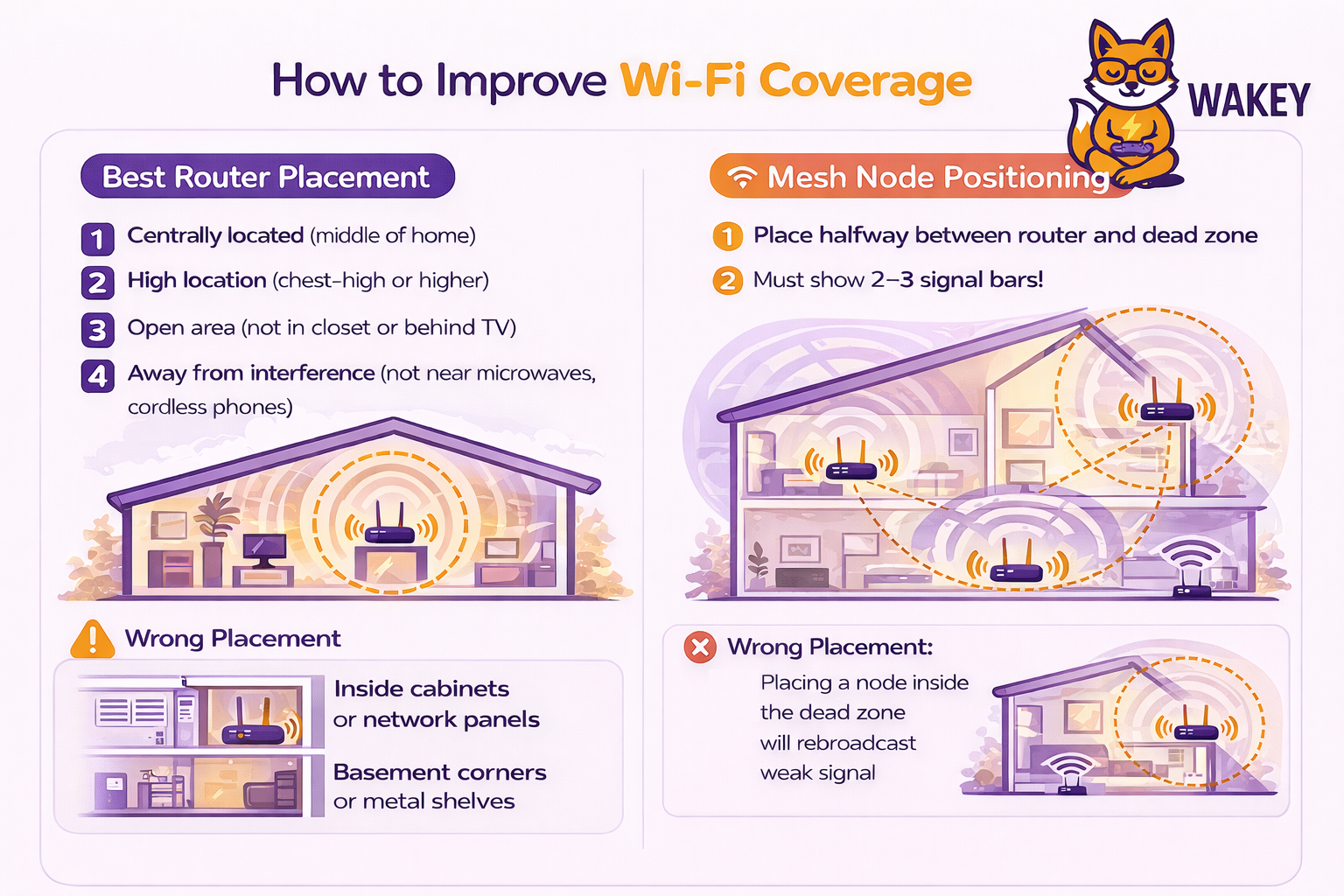
Need More Coverage? Consider Mesh Wi-Fi
For larger homes, multi-level homes or areas with difficult Wi-Fi coverage, adding another compatible Wakey Mesh Wi-Fi unit can help extend your wireless network.
Under ideal conditions, each Wakey Mesh unit can provide coverage of up to approximately 1,500 square feet. Actual coverage will vary depending on walls, floors, interference, placement and the construction of your home.
Additional compatible mesh units can be added, up to a maximum of 8 units.
Additional units can be requested through your Wakey Account or by contacting the Wakey Crew via Live Chat. Additional charges may apply.
1. Place Your Router in a Central & Open Location
Router placement is one of the easiest — and most important — ways to improve Wi-Fi performance.
Give Your Wi-Fi Some Room to Breathe
For better coverage:
- Place your router in a central area of your home whenever possible.
- Keep it in an open area rather than inside a cabinet or closet.
- Elevate the router to approximately waist height or higher when possible.
- Keep it away from thick walls, large metal surfaces and major appliances.
- Try to minimize the number of walls and floors between the router and your most-used devices.
A living room, office or other open central area is generally much better than a basement corner, utility room or enclosed cabinet.
Try to Avoid These Locations
Behind televisions, inside utility panels, inside cabinets, next to large refrigerators, beside microwaves or tucked away in a basement corner.
2. Keep Your Router Away From Interference
Wi-Fi uses radio frequencies, which means other electronics and wireless devices can compete for the same airspace.
Give Your Router Some Space
Potential sources of interference can include:
- Microwave ovens
- Bluetooth devices and speakers
- Baby monitors
- Cordless phones
- Older wireless cameras
- Smart appliances
- Other nearby Wi-Fi networks
- Older 2.4 GHz wireless devices
Where practical, try to maintain approximately 2–3 feet of separation between your router and other electronics that may cause interference.
3. Let Your Router Manage Wi-Fi Channels When Possible
Wi-Fi channels are a bit like lanes on a highway. When too many nearby networks are using the same or overlapping channels, congestion and interference can affect performance.
Automatic Is Usually Best
Many modern routers and mesh systems, including equipment provided by Wakey, can automatically select Wi-Fi channels based on the surrounding wireless environment.
If your router offers an Auto or automatic channel-selection option, we generally recommend leaving it enabled unless you have a specific reason to manually configure your wireless channels.
Advanced Users — Manual Channel Selection
If your particular router allows manual channel selection and you understand how to adjust it, these are useful starting points.
2.4 GHz
The standard non-overlapping 2.4 GHz channels are:
1 • 6 • 11
Using one of these channels generally helps avoid overlapping-channel interference.
5 GHz
Common non-DFS 5 GHz channel groups include lower channels such as 36, 40, 44 and 48. Other channels may also be available depending on your router, configuration and regulatory region.
For most customers, however, automatic channel selection is the better choice.
4. Choose the Right Channel Width
Channel width affects the balance between speed, interference, range and stability.
2.4 GHz
For most homes, 20 MHz is a good starting point for 2.4 GHz.
It generally provides better coexistence and stability in busy wireless environments and can work well with IoT and smart-home devices that prioritize range and compatibility.
In lower-interference environments, some routers may automatically use or allow wider channel configurations.
5 GHz
Wider channels can provide greater potential throughput, while narrower channels can sometimes provide better stability in congested environments.
If your router manages channel width automatically, we recommend allowing it to do so.
If you’re manually configuring an advanced router, 40 MHz can be a useful stability-focused starting point, while 80 MHz can provide greater throughput when the wireless environment and your devices support it.
What About 2.4 GHz vs. 5 GHz?
Many modern routers provided by Wakey support automatic band steering. This allows the router to help move compatible devices between available Wi-Fi bands based on signal quality, device capability and network conditions.
Unless you’re troubleshooting a specific compatibility issue, there is generally no need to separate your Wi-Fi network into different 2.4 GHz and 5 GHz names when your router is designed to manage the bands automatically.
5. Add Mesh Units Where You Need More Coverage
A single router may not be enough for every home. Larger homes, multiple floors and difficult building materials can all create weak Wi-Fi areas.
Mesh Placement Matters
Adding another mesh unit can improve coverage, but placing it directly inside an area that already has almost no Wi-Fi signal usually isn’t ideal.
For better mesh performance:
- Keep mesh units approximately 30–40 feet from the main router or previous mesh unit when conditions allow.
- Avoid placing mesh units behind several walls or inside cabinets.
- Try to minimize major obstructions between mesh units.
- Place the additional unit between the main router and the weak coverage area.
- Where supported and practical, Ethernet backhaul can provide a strong connection between mesh units.
Don’t Put the Mesh Unit in the Dead Zone
A wireless mesh unit still needs a good connection back to the main router or another mesh unit.
Main Router → Mesh Unit → Weak Coverage Area
If signal or performance drops substantially in one area of your home, try placing a mesh unit roughly halfway between the router and the weak area rather than directly inside the weak zone.
6. Restart Your Router When Needed
Like any networking device, a router can occasionally benefit from a fresh restart.
Restart, Don’t Reset
If your Wi-Fi isn’t behaving normally, a simple restart is a good troubleshooting step.
Disconnect your router from power, wait approximately 30 seconds, reconnect it and give the router several minutes to fully restart.
There’s generally no need to unplug or restart your router frequently when everything is working normally.
Restarting ≠ Factory Resetting
A normal restart simply turns the router off and back on.
A factory reset erases configuration and Wi-Fi settings. Unless you’re following instructions for your specific Wakey-provided router or have been advised to do so during troubleshooting, avoid pressing and holding the RESET button.
7. Keep Your Devices Up to Date
Sometimes the Wi-Fi network isn’t the problem at all. The device connecting to it can be the culprit.
Keep Your Devices Current
Install available software and firmware updates for devices such as:
- iPhones, iPads and Android devices
- Windows PCs and Macs
- Smart TVs
- Gaming consoles
- Streaming devices
- Smart-home and IoT devices
Updates can include fixes for Wi-Fi compatibility, stability, security and performance.
8. Use Ethernet When Speed & Stability Matter Most
Wi-Fi is incredibly convenient, but a wired Ethernet connection is still the best option when consistency and latency matter.
If You Can Wire It, Wire It
Consider Ethernet for devices such as:
- Desktop computers
- Work-from-home computers and docking stations
- Gaming consoles
- Smart TVs
- Streaming boxes
- Other high-bandwidth stationary devices
Wired connections aren’t affected by wireless interference or distance in the same way Wi-Fi is, making Ethernet particularly useful for gaming, video calls, large downloads and high-quality streaming.
Testing Your Internet Speed?
For the most useful test of the Internet connection being delivered to your home, use a capable computer connected directly to your router by Ethernet.
A Wi-Fi speed test measures both your Internet connection and the performance of the wireless connection between your device and router, so results can vary considerably.
9. Remember That VPNs Can Affect Performance
A VPN sends your Internet traffic through another server, which can affect the performance you see on an individual device.
Using a VPN?
Depending on the VPN provider, server and location, a VPN can:
- Reduce download or upload speeds
- Increase latency
- Cause issues with some streaming services
- Increase buffering
If you’re troubleshooting a speed or connectivity problem, temporarily disabling your VPN can help determine whether the VPN is contributing to the issue.
10. Leave DNS on Automatic Unless You Need Something Different
DNS helps your devices translate website names into the addresses needed to reach them.
Automatic DNS Is Fine for Most Homes
For most customers, leaving your router’s DNS setting on Automatic is the simplest option and requires no additional configuration.
Advanced users may choose to configure a third-party DNS service. For example, Cloudflare DNS uses:
1.1.1.1 • 1.0.0.1
Only change DNS settings if you understand the change you’re making. Incorrect DNS settings can prevent websites, apps or other Internet services from working correctly.
How Wakey Can Help With Your Wi-Fi Experience
Wi-Fi is affected by both your Internet equipment and the unique environment inside your home. The Wakey Crew can help determine where the problem may be occurring and point you in the right direction.
What We Can Help With
The Wakey Crew can assist with:
- Internet and modem signal diagnostics
- Modem functionality and connectivity
- Basic setup of Wakey-provided routers and mesh equipment
- Determining whether an issue appears related to the Internet connection or Wi-Fi
- General guidance for improving your Wi-Fi experience
We’ll always do our best to help identify what’s happening and point you toward the right solution.
Some Wi-Fi Problems Are Unique to Your Home
Because our Crew is assisting remotely, some in-home conditions can’t be directly diagnosed or corrected by Wakey.
These can include:
- The physical placement of your router
- Interference from neighbouring networks or household electronics
- Building materials, walls and floors
- Device-specific compatibility issues
- Third-party networking equipment
- Physical in-home wiring or custom network installations
These situations may require changes inside the home or on-site analysis outside the scope of remote Wakey support. That said, we’ll still do our best to help you narrow down the issue and provide useful next steps.
Wi-Fi Not Quite Right? Start Here.
Before contacting the Wakey Crew, try these three quick checks:
1. Move closer to your router and test again.
2. Restart your router by disconnecting power for approximately 30 seconds.
3. If possible, test a computer using Ethernet directly from the router.
These three tests can quickly help determine whether the issue is related to your Internet connection, your router or the wireless environment inside your home.
Note: These Wi-Fi best practices are general recommendations from Wakey Internet. Wireless performance varies by router, device, building construction, interference and environment. Not every setting or adjustment will be appropriate for every home or device. If a change doesn’t improve your experience, you can revert it or contact the Wakey Crew for general guidance.