


CBN CD8000 Cable Modem Guide
The CBN CD8000 is a DOCSIS 3.1 cable modem.
This guide covers getting connected, LED light meanings, reset instructions and common troubleshooting.
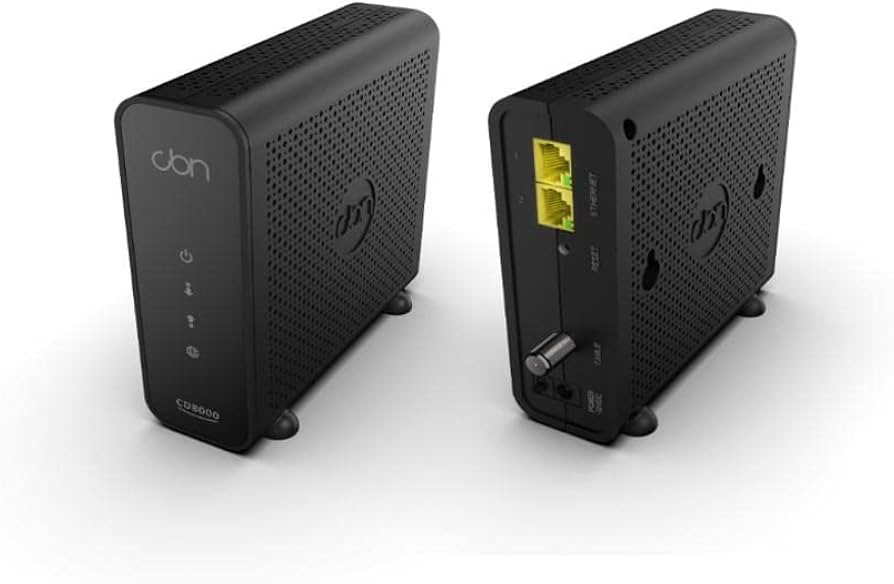
Important — The CD8000 Does Not Have Wi-Fi
The CD8000 is a standalone cable modem. It does not contain a Wi-Fi router and will not broadcast a wireless network.
To connect your wireless devices, you’ll need to connect the CD8000 to your Wakey-provided Wi-Fi router or another compatible router or Wi-Fi system.
The connection should be:
Coax Outlet → CD8000 → Wi-Fi Router → Your Devices
In This Guide
Quick Specs
CBN CD8000
Type:
DOCSIS 3.1 Cable Modem
Built-in Wi-Fi:
None — a separate Wi-Fi router is required.
Ethernet Ports:
2 × Gigabit Ethernet LAN ports
DOCSIS:
DOCSIS 3.1 OFDM/OFDMA with DOCSIS 3.0 support
Remember: Modem + Router
The CD8000 handles the cable Internet connection. Your separate router handles your home network and Wi-Fi. For normal use, you need both.
How to Connect the CD8000
Setting up your CD8000 only takes a few connections.
Quick Setup — Let’s Get Online
1 — Connect the Coaxial Cable
Connect the coaxial cable from your wall outlet to the Cable / Coax connection on the CD8000.
Make sure the connection is snug and hand-tightened.
2 — Connect the Power
Connect the CD8000 power adapter and plug it into power. If your unit has a power switch, make sure it is turned on.
3 — Let the Modem Start Up
Allow approximately 2–10 minutes for the CD8000 to boot and establish its connection.
4 — Connect Your Wi-Fi Router
Connect an Ethernet cable from:
CD8000 LAN 1 → Router WAN / Internet Port
Once your router has started, connect your devices to the Wi-Fi network provided by your router.
Important — Use LAN Port 1 Only
For your Wakey Internet connection, connect your router to LAN Port 1.
LAN Port 2 should remain unused. Connecting another router, computer or device directly to LAN 2 may cause connection instability, drops or other performance issues.
LED Light Patterns
The lights on the CD8000 provide a quick way to see where the modem is in the connection process.
Normal Working Pattern
POWER Solid • DS Solid • US Solid • ONLINE Solid
When all four lights are solid, the CD8000 is operating normally and has completed its connection to the cable network.
| POWER | DS | US | ONLINE | What It Means |
|---|---|---|---|---|
| Solid | Solid | Solid | Solid | Operating normally. |
| Solid | Flashing | Off | Off | The modem is scanning for a downstream channel connection. |
| Solid | Solid | Flashing | Off | The modem is scanning for an upstream channel connection. |
| Solid | Solid | Solid | Flashing | The modem is connecting, registering or waiting for provisioning. |
The Most Important Light: ONLINE
The modem normally progresses through DS → US → ONLINE as it establishes its connection.
If POWER, DS, US and ONLINE are all solid, your CD8000 has completed its connection to the cable network. If ONLINE continues flashing, jump to the troubleshooting section below.
Reset Instructions
There are two different ways to restart or reset your CD8000. For most connection problems, start with a simple power cycle.
Option 1 — Power Cycle
This is the recommended first step for most connection issues.
1 — Unplug the Modem
Disconnect the CD8000 from power.
2 — Wait 30 Seconds
Leave the modem disconnected from power for approximately 30 seconds.
3 — Reconnect Power
Plug the power adapter back into the CD8000.
4 — Wait for ONLINE
Allow approximately 3–5 minutes for the modem to reconnect and for the ONLINE light to become solid.
When Should I Power Cycle?
A power cycle is a good first step for slow speeds, no Internet, intermittent disconnections or after changing/swapping your Wi-Fi router.
Option 2 — Factory Reset
A factory reset returns the CD8000 to its original factory configuration and clears its event log.
1 — Keep the Modem Powered On
Make sure the CD8000 is connected to power and turned on.
2 — Locate the RESET Hole
Locate the small recessed RESET hole on the modem.
Use a paper clip, pin or similar small object to press the reset button inside.
3 — Hold for 10–15 Seconds
Press and hold the RESET button for approximately 10–15 seconds, until the modem lights turn off or begin flashing.
4 — Release & Wait
Release the RESET button and allow the CD8000 several minutes to restart and reconnect.
Factory Reset — Use When Necessary
A factory reset is generally a last-resort troubleshooting step rather than a routine reboot.
Depending on the situation, the modem may require reactivation after being factory reset. If you’re unsure, the Wakey Crew can help.
Using the Ethernet Ports
The CD8000 has two Gigabit Ethernet ports, but for Wakey Internet customers, only LAN Port 1 should be used.
LAN Port 1 — Your Router Goes Here
CD8000 LAN 1 → Router WAN / Internet Port
This is the normal configuration for your Wakey Internet connection.
Leave LAN Port 2 Unused
Connecting both Ethernet ports does not combine your Internet speed and does not create two separate Internet connections.
Connecting an additional router, computer or other device directly to LAN Port 2 may cause instability, connection drops or performance issues.
Common Issues & Fixes
Having trouble? These are some of the most common CD8000 symptoms and the first things to check.
1 — ONLINE Light Keeps Flashing
If the ONLINE light continues flashing and never becomes solid, the modem has not fully completed its connection or registration.
Try:
- Make sure the coax connector is hand-tightened. Don’t overtighten it.
- Power cycle the modem by unplugging it for 30 seconds.
- Try another coaxial cable if one is available.
- Try another active coax outlet if one is available.
If the ONLINE light still does not become solid after approximately 15 minutes, contact the Wakey Crew so we can review provisioning and signal information.
2 — Internet Works but Randomly Disconnects
Intermittent disconnections can sometimes be related to cable signal instability or upstream noise.
Check the basics first:
- Remove unnecessary coax extensions or adapters.
- Make sure coax connectors are snug and not corroded.
- Avoid unnecessary coax splitters where possible.
- Power cycle the modem.
- Review modem logs if available.
If intermittent disconnections continue, contact the Wakey Crew so we can take a closer look.
3 — Slow Speeds
Because the CD8000 does not provide Wi-Fi, slow speeds experienced on a wireless device can often be related to the router, Wi-Fi environment or the device itself.
For the best speed test:
- Use a computer connected to your router by wired Ethernet.
- Reboot both your router and modem.
- Make sure your device has a Gigabit-capable Ethernet connection.
- Close downloads, streaming or other high-bandwidth activity during the test.
Need help improving Wi-Fi?
Check out our Wi-Fi Best Practices Guide.
Good to know: A 1 Gigabit Ethernet connection will generally test below the full 1,000 Mbps line rate because of networking overhead.
4 — Router Is Connected but There’s No Internet
If the modem lights look normal but your router doesn’t have an Internet connection, try:
- Make sure the router is connected to LAN Port 1 on the CD8000.
- Make sure the Ethernet cable is connected to the router’s WAN / Internet port.
- Power off both the modem and router.
- Power the CD8000 back on first.
- Wait for POWER, DS, US and ONLINE to become solid.
- Then power your router back on.
If the connection still doesn’t come online, contact the Wakey Crew and let us know the light pattern showing on the CD8000.
When to Contact the Wakey Crew
Still Having Trouble?
Please reach out if:
- The ONLINE light won’t become solid after approximately 10–15 minutes.
- Random disconnections continue after completing a power cycle.
- Modem logs, if available, repeatedly show T3 timeouts or Loss of Sync events.
- You need help activating a replacement modem.
- You’ve completed the troubleshooting above and your connection still isn’t behaving normally.
When contacting us, let us know what you’ve already tried and what the POWER, DS, US and ONLINE lights are doing. That helps the Wakey Crew move on to the next troubleshooting step instead of making you repeat yourself.